

Overview
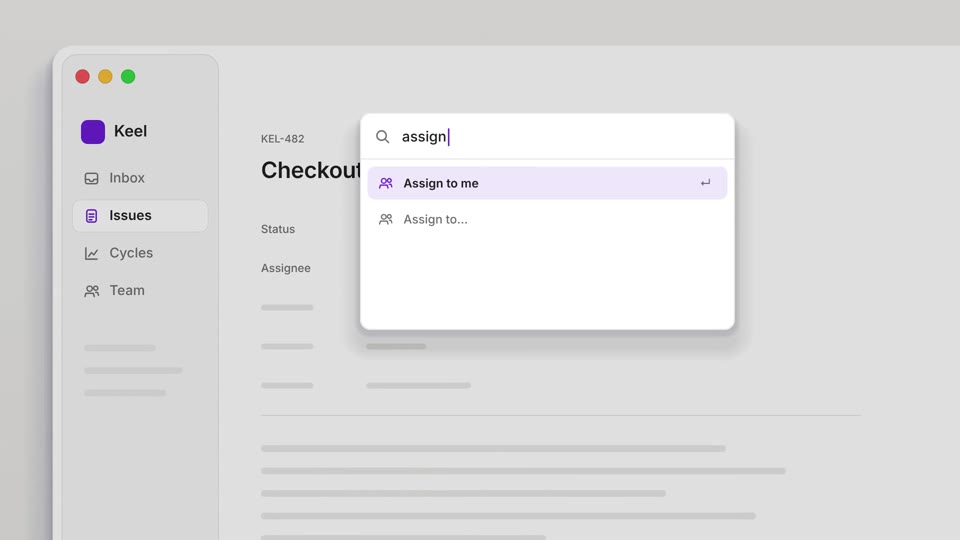
Made with Mografy Stage, keyboard only. ⌘K opens the palette over a dimmed page, typing “assign” filters it, Return assigns the issue and the avatar flies into the Assignee field while the camera leans in. ⌘Z undoes it, which is the loop. The keycaps at the bottom of the frame are the cause of every change.
Motion breakdown
- 0–1.3s
1. ⌘K
The keycaps press and the palette opens.
- 1.3–2.0s
2. Type
“assign” filters the list to two commands.
- 2.0–6.5s
3. Assign and undo
Return sends the avatar into the field, the camera leans in, and ⌘Z undoes it.
Open the scene
Download and unzip the project, then open it with your installed Mografy CLI.
Download scene projectnpx mografy dev ./stage-commandWith Mografy installed, npx mografy add stage-command copies the same project into the examples folder of your Mografy workspace (films that are not installed are downloaded from the showcase). Animation code stays in scenes/main.ts with its helpers in scenes/stage.ts. The ZIP includes the Inter font files and license.
Original prompt
Read the creative brief
Use Mografy Stage to make a keyboard-only loop for a fictional issue tracker called Keel, in the newer macOS window. Press ⌘K, type “assign”, press Return: the issue is assigned and the avatar flies into the Assignee field. Then ⌘Z undoes it. Show the keys being pressed at the bottom of the frame, because they are the cause of every change. No mouse cursor.