

總覽
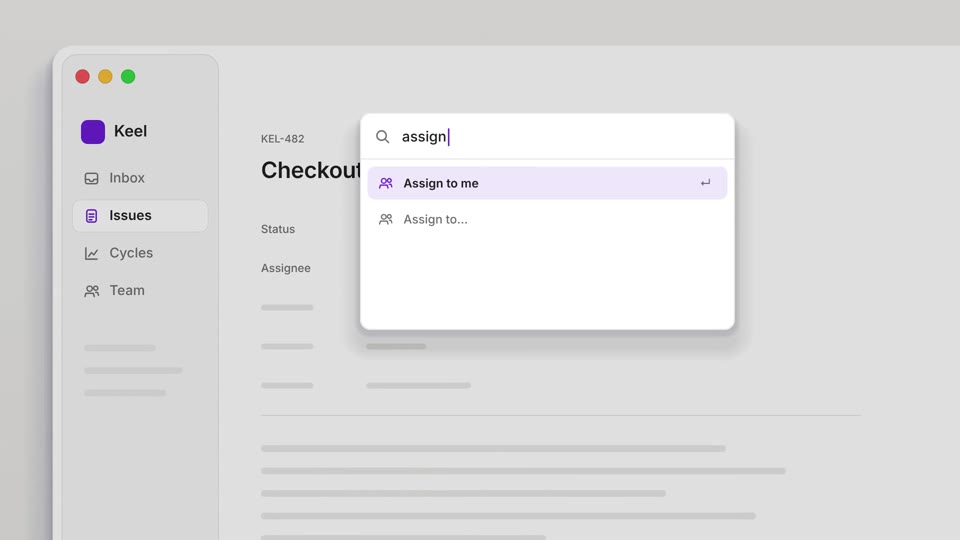
用 Mografy Stage 製作,只用鍵盤。⌘K 在變暗的頁面上打開指令面板,輸入「assign」篩選,按 Return 指派議題,頭像飛進 Assignee 欄位,鏡頭同時推近。⌘Z 復原,就是 loop。畫面底部的鍵帽就是每個變化的起因。
動態解析
- 0–1.3s
1. ⌘K
鍵帽被按下,指令面板打開。
- 1.3–2.0s
2. 輸入
「assign」把清單篩選到剩兩個指令。
- 2.0–6.5s
3. 指派與復原
Return 讓頭像飛進欄位,鏡頭推近,接著 ⌘Z 復原。
開啟場景
下載並解壓縮專案,再以已安裝的 Mografy CLI 開啟。
下載場景專案npx mografy dev ./stage-command安裝好 Mografy 後, npx mografy add stage-command 會把同一個專案複製到 Mografy 工作區的 examples 資料夾(沒有隨安裝附上的影片會從 Showcase 下載)。動畫程式碼在 scenes/main.ts ,輔助函式位於 scenes/stage.ts。ZIP 內含 Inter 字型檔與授權文件。
原始提示詞
閱讀創作需求
Use Mografy Stage to make a keyboard-only loop for a fictional issue tracker called Keel, in the newer macOS window. Press ⌘K, type “assign”, press Return: the issue is assigned and the avatar flies into the Assignee field. Then ⌘Z undoes it. Show the keys being pressed at the bottom of the frame, because they are the cause of every change. No mouse cursor.